

Claude is an AI assistant made by Anthropic that reads and writes text, works with files and images, and can connect to other software. Sales teams use it to draft call scripts, summarize calls, write follow-ups and ask questions about their own data.
This guide shows how to use Claude from your first chat to a connected setup. It covers the models, what each plan costs, how to write a prompt that works, five jobs it handles well for a sales team and the mistakes to avoid. Plan details and prices were checked on Anthropic’s pages on October 22, 2026, and they change often.
Bigly Sales builds AI calling software, so you should know where we sit. Our MCP server connects a Bigly Sales account to Claude, and there is a section on that near the end. If you are new to the term, our explainer on what MCP is covers it in plain words.
TL;DR
Claude is Anthropic’s AI assistant, available on the web, on desktop and on mobile. The Free plan costs $0, Pro costs $17 a month billed annually or $20 billed monthly, and Max starts at $100 a month. You get better results when you are specific, give context and show three to five examples, and Projects keep your scripts and notes in one place. Claude connects to outside tools through connectors, including Bigly Sales through its MCP server. Claude does not place phone calls on its own, so it helps you prepare and review calls and does not replace a calling platform.
Key Takeaways
- Claude is an AI assistant from Anthropic that works on the web, desktop and mobile.
- The Free plan costs $0, Pro starts at $17 a month billed annually, and Max starts at $100 a month.
- Clear prompts with context and three to five examples give better answers than short requests.
- Projects keep documents and instructions together so every chat starts with the right background.
- Connectors let Claude work with other apps, including the Bigly Sales MCP server.
- Claude drafts and analyzes. It does not dial, and a person still reviews scripts for calling rules.
- Check numbers and facts before you use them, and check your plan’s data settings before you paste customer details.
Table of contents
- What Claude is
- The Claude models in plain words
- Claude plans and what they cost
- How to start using Claude
- How to write a prompt that works
- How to keep your work in Projects
- Five sales jobs Claude does well
- How to use Claude with an MCP server
- How Claude works with Bigly Sales
- Mistakes to avoid
- Who this is wrong for
- How to use Claude FAQ
- The bottom line
What Claude is
Claude is an AI assistant built by Anthropic on its own family of large language models. A large language model is the AI system that reads your words and writes a reply. You type or speak a request, and Claude answers in plain language, writes a document or builds a table.
You can use it on the web at claude.ai, in a desktop app and on a phone. According to Anthropic’s pricing page, the Free plan includes chat on web, desktop and mobile, web search, file creation and code execution, memory and connectors. That is enough to test every idea in this guide before you pay for anything.
The Claude models in plain words
Anthropic runs four current models. The names matter less than the idea behind them. A larger model thinks longer and costs more, and a smaller model answers faster. Each one can hold about one million tokens in a single conversation, which Anthropic puts at roughly 555,000 words. The table follows Anthropic’s model overview.
| Model | What Anthropic says it is for | Speed |
|---|---|---|
| Claude Fable 5.1 | Demanding reasoning and long-horizon agentic work | Slower |
| Claude Opus 5.5 | Long-running agentic coding and knowledge work | Moderate |
| Claude Sonnet 5.5 | A balance of speed and intelligence | Fast |
| Claude Haiku 5.5 | High-volume, latency-sensitive tasks such as classification, extraction and routing | Fastest |
If your plan lets you choose, start with the default. Move to a larger model when an answer feels shallow, and to a smaller one when you need speed on simple, repeated work.
Claude plans and what they cost
Claude has five plans. Anthropic’s pricing page lists them, and the table below sums them up. Prices exclude tax.
| Plan | Price | Who it suits | Notable points |
|---|---|---|---|
| Free | $0 | Trying Claude | Chat, web search, memory, connectors and up to 5 Projects. No Claude Code, Research or Opus |
| Pro | $17 a month billed annually, $20 billed monthly | One person using it every day | At least 5x more usage per five-hour session than Free, plus Claude Code, Research and Opus |
| Max | From $100 a month | Heavy daily use | 5x or 20x more usage than Pro, plus higher output limits and priority access at busy times |
| Team | Standard seat $20 a month billed annually ($25 monthly), Premium seat $100 ($125 monthly) | Teams of 2 to 150 | Shared Projects, connector controls for admins, SSO and central billing |
| Enterprise | $20 a seat a month billed annually, 20 seat minimum, plus usage | Large organizations | Audit logs, role-based access, SCIM and custom data retention |
Every plan has usage limits that reset on a rolling five-hour window, and paid plans add weekly limits. Claude on the web, on desktop, on mobile and in Claude Code draws from the same pool. Most people start on Free, then move to Pro when they hit the limit on real work.
Free setup
See Claude and AI calling work together
Bigly Sales sets up your AI calling system in one free 30-minute session and walks you through connecting an assistant like Claude to your results. There is no obligation.
How to start using Claude
- Go to claude.ai or open the desktop or mobile app, and create an account.
- Stay on the Free plan and try a real task from your week, such as tightening a call script.
- Upload the document instead of pasting long text, so Claude reads the whole thing.
- Say what you want, who it is for and what a good answer looks like.
- Ask for changes in the same chat until the result fits.
- Move to Pro when you hit the usage limit on real work.
How to write a prompt that works
A prompt is the instruction you give Claude. Anthropic’s prompting guide describes Claude as a brilliant but new employee who does not know your norms or your workflow. The more precisely you explain what you want, the better the result. Five habits from that guide work well for sales teams.
- Be clear and direct. State the task, the format and the limits. Anthropic suggests a test. Show your prompt to a colleague with no background, and if they would be confused, Claude will be too.
- Add context and the reason. Explain why the task matters and who will read the answer. Claude can use the reason to make better choices.
- Show examples. A few good examples steer tone and format better than a long description. Anthropic suggests three to five that are relevant and varied.
- Use structure. Label the parts of a long prompt, such as instructions, background and examples, so Claude does not mix them up.
- Give Claude a role. One sentence, such as “You are a sales trainer,” focuses the tone and the content.
Here is the difference in practice. A weak prompt reads, “Write a cold call script.” A stronger one reads as follows.
You are a sales trainer for a solar installation company in Florida. Write a 30 second opening for a call to a homeowner who filled out a quote form two hours ago. The goal is to book a 15 minute site visit. Keep it under 80 words, friendly and direct, and end with one question. Here are two openers we like. [paste two]. Do not make claims about savings.
The second prompt gives a role, a situation, a goal, a limit and examples. Claude can draft a script, but a person still reviews it against your consent records and calling rules before anyone dials.
How to keep your work in Projects
A Claude Project groups related chats around shared background. Anything you upload to the project is used across every chat inside it, and you can set instructions that apply to all of them. Projects are available on every plan, and Free accounts can create up to five. Sharing is limited to Team and Enterprise plans, where members can be set to view or edit.
One limit to know. Context is not shared across chats in a project unless it sits in the project’s knowledge, so put anything you want Claude to remember there. A sales team might keep one Project for scripts, one for objection answers and one for lead notes.
Five sales jobs Claude does well
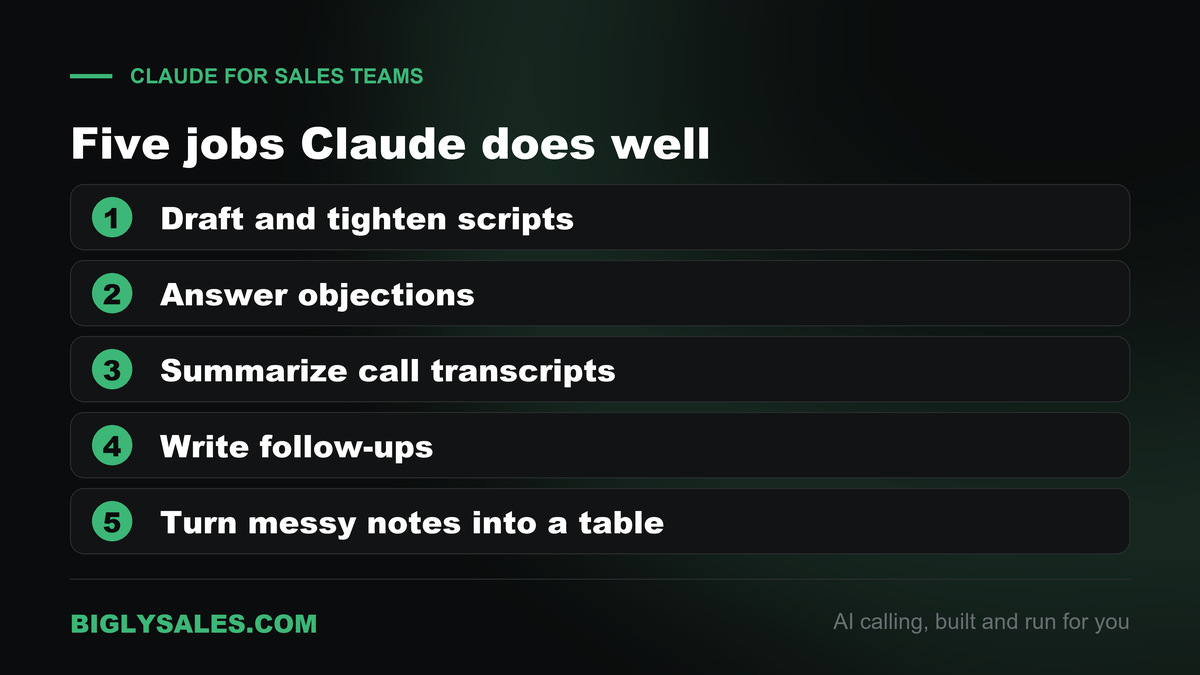
- Draft and tighten scripts. Paste your current opener and ask for three shorter versions in different tones. Keep the one that sounds like your team.
- Answer objections. List the five objections you hear most and ask for a short, honest reply to each. Read them aloud before you use them.
- Summarize call transcripts. Paste a transcript and ask for the three most common reasons people said no, with a short quote for each. Remove names and numbers first.
- Write follow-ups. Give Claude the call outcome and ask for a short follow-up. Check your consent records before you send any call or text.
- Turn messy notes into a table. Upload a rough list and ask for a clean table with the columns you need. Check a few rows by hand.
Claude can be wrong. It may state a figure with confidence that is not in your data, so spot check numbers, names and claims before they go into a script or a report.
How to use Claude with an MCP server
A connector lets Claude work with another app. Anthropic’s help center explains custom connectors that use remote MCP, available on Free, Pro, Max, Team and Enterprise plans. Free users are limited to one custom connector. MCP is an open standard for linking assistants to software, and our guide on what MCP is explains it.
On Pro and Max
- Open Customize, then Connectors.
- Click Add, then Add custom connector.
- Enter a name and the remote MCP server URL.
- Review the sign-in settings and click Add.
On Team and Enterprise
- An Owner opens Organization settings, then Connectors, and adds the custom connector.
- Each member opens Customize, then Connectors, and clicks Connect to sign in.
To use a connector in a chat, click the plus button at the lower left and turn the connector on. The server has to be reachable from the public internet, because Claude connects from Anthropic’s cloud. Only connect to servers from organizations you trust, review what each sign-in asks for, and read tool approval requests before you accept them.
How Claude works with Bigly Sales
Claude does not place calls. Bigly Sales does that with AI voice agents, and you can read how they work in our guide to what an AI voice agent is. The Bigly Sales MCP server then connects your account to Claude, ChatGPT and other MCP-compatible assistants, so you can ask about your calling data in plain language.
According to Bigly Sales, an assistant connected this way can pull the following.
- Call outcomes and dispositions for any campaign and date range
- Call summaries and full transcripts
- Interested leads and follow-up requests
- Follow-up lists for reps
- Contact updates, and a list sent into an active campaign
- Campaign pacing and minutes used in the current cycle
You might ask, “Which interested leads from yesterday’s campaign still need a follow-up?” or “Show me the transcripts from calls that ended in a callback request.”
The assistant works through your existing account, so it only sees what that account is allowed to see. Admins choose which team members connect an assistant and what they may change. Consent records, Do Not Call scrubbing and calling windows are enforced before every dial, whether a campaign starts from the dashboard or from an assistant. The server does not replace the dashboard for deep review. Our guide to the MCP server for AI calling goes deeper.
| You ask | What the assistant can do | What Bigly keeps in place |
|---|---|---|
| Which interested leads still need a follow-up? | Find the leads who showed interest or asked for a follow-up | The assistant sees only what your account is allowed to see |
| Summarize yesterday’s calls for this campaign | Pull call outcomes, summaries and transcripts for a campaign | Admins choose who connects and what each person may change |
| Add these new leads to the campaign | Add or update contacts and send a list into an active campaign | Consent records, Do Not Call scrubbing and calling windows are enforced before every dial |
| How many minutes have we used? | Check campaign pacing and minutes used in the current cycle | The server does not replace the dashboard for deep review |
Bigly’s own guide to the MCP server lists questions it does not answer in detail yet, so ask your Bigly team before you connect. Which people can connect, and what can each one change? How fast can access be removed? Is there a record of assistant requests and changes? How does the connection verify who is asking? What happens to transcripts and contact details in the assistant’s chat history?
The Bigly Sales page does not list connection steps. Your account representative walks your team through the connection, and the free setup session includes a Bigly MCP walkthrough. Bigly Sales also says it builds call scripts with Claude, ChatGPT and other leading LLMs.
Mistakes to avoid
- Vague prompts. A one line request gets a generic answer. Add the role, the goal and an example.
- One giant chat for everything. Use Projects so each job starts with the right background.
- Trusting numbers without a check. Verify figures against your own data.
- Pasting sensitive data without a plan check. Look at your plan’s data settings and your company rules first.
- Connecting servers you do not know. Custom connectors can reach services Anthropic has not verified.
- Skipping the compliance review. Claude can draft a script, and a person decides whether it meets consent and calling rules.
Who this is wrong for
- Teams that want an AI to dial and talk to leads. Claude does not place calls, so you need an AI calling platform for that.
- Anyone who needs guaranteed accuracy with no review. Claude drafts and analyzes, and people check the result.
- Teams with strict data rules that IT or legal has not cleared for an outside AI tool.
- People who only need a quick answer once in a while. The Free plan is enough, and the paid plans may not be worth it.
How to use Claude FAQ
What is Claude?
Claude is an AI assistant made by Anthropic. It reads and writes text, works with files and images, and can connect to other software. You use it on the web, in a desktop app or on a phone. Sales teams use it to draft scripts, summarize calls, write follow-ups and ask questions about their own data.
Is Claude free to use?
Yes. Anthropic offers a Free plan at $0 that covers everyday questions, with chat, web search, memory, connectors and up to five Projects. It does not include Claude Code or Research. Free usage has limits that reset on a rolling five-hour window, so heavy daily use usually means moving to a paid plan.
How much does Claude cost?
Pro costs $17 a month billed annually or $20 billed monthly. Max starts at $100 a month. Team standard seats cost $20 a seat a month billed annually or $25 billed monthly. Enterprise is $20 a seat a month billed annually with a 20 seat minimum, plus usage. Prices were checked on October 22, 2026 and exclude tax.
How do I use Claude for the first time?
Create an account at claude.ai or in the desktop or mobile app, then start a chat with a real task. Say what you want, who it is for and what a good answer looks like. Attach any files it needs and ask for changes in the same chat until the result fits.
What is a Claude Project?
A Project groups related chats around shared documents and instructions. Anything you upload to the project is used across all chats inside it. Projects are available on every plan, and Free accounts can create up to five. Sharing a project with teammates is limited to Team and Enterprise plans.
Can Claude make phone calls?
Not on its own. Claude is an assistant that works with text, files and connected tools, and it does not place calls. An AI calling platform does that. Bigly Sales runs AI calls for you, and its MCP server lets you ask Claude about the results.
How do I connect Claude to other apps?
Claude uses connectors. On Pro and Max, open Customize, then Connectors, choose Add and Add custom connector, and enter the remote MCP server URL. On Team and Enterprise, an Owner adds the connector under Organization settings, and members then connect it themselves.
Can Claude connect to Bigly Sales?
Yes. Bigly Sales says its MCP server connects your account to Claude, ChatGPT and other MCP-compatible assistants. Once connected, you can ask about call outcomes, transcripts and follow-up lists in plain language. The assistant only sees what your account is allowed to see, and your account representative walks your team through the connection.
How is Claude different from ChatGPT?
Both are AI assistants, and Bigly Sales names both for its MCP connection. They differ in models, plans, features and style. The fair test is to give each one the same real task, such as rewriting a call script, and compare the results. Many teams use more than one.
Is it safe to paste customer data into Claude?
It depends on your plan and your company rules. Check the data settings for your plan, and ask your IT or legal team before you paste personal details. Anthropic says Team plans do not train on your content by default. When in doubt, remove names and phone numbers before you paste.
The bottom line
Claude is a general AI assistant that helps a sales team write, summarize and analyze faster. Start on the Free plan, write specific prompts with examples, keep your work in Projects and check anything that goes in front of a customer.
When you want an AI that makes the calls, connect your assistant to a platform that does. Bigly Sales sets up the calling, and Claude helps you ask questions about the results.
Ready when you are
Run AI calls and ask Claude about them
See plans and pricing for Bigly Sales, then connect your assistant to your calling data. Setup is free and takes one 30-minute session.