


Gemini is Google’s AI assistant. For a sales team, it sits inside the tools you already open every morning, including Gmail, Calendar, Docs, Sheets and Meet.
Most reps already have it and never use it. Google now bundles Gemini into paid Workspace plans, so the question is no longer whether to buy it. It is how to point it at the work that slows your team down.
This guide covers the plans, the daily uses, Gems, Gemini Enterprise and how Gemini can connect to your calling data through the Bigly Sales MCP server. It is the third guide in a series, after how to use Claude and ChatGPT for sales teams.
Gemini is Google’s AI assistant, and it comes bundled with paid Google Workspace plans. Business Standard, listed at $14 per user per month on October 28, 2026, is the lowest plan with Gemini in Docs, Sheets and Meet. Gems let a team save and share prompts for call prep and follow-ups. Bigly Sales confirms its MCP server works with Gemini CLI, Google’s command line tool. Gemini helps your reps prepare and write. It does not dial or talk to leads.
Key Takeaways
- Gemini is bundled into paid Google Workspace plans.
- Business Starter gets Gemini in Gmail only. Standard and above add Docs, Sheets, Meet and more.
- Gems are saved, shareable prompts and the fastest win for a sales team.
- Meet can take notes for you and send them to the attendees after the call.
- Bigly Sales confirms its MCP server with Gemini CLI. Gemini Enterprise is not confirmed yet.
- Google says Workspace data is not used to train its models without permission.
- Gemini supports the people on the phone. It does not make the calls.
Table of contents
- What Gemini is
- What sales teams use Gemini for
- The three ways to get Gemini
- Workspace plans and what they cost
- Gemini in Gmail, Docs, Sheets and Meet
- Gems and Deep Research for sales prep
- NotebookLM for sales enablement
- Gemini Enterprise and agents
- How to connect the Bigly Sales MCP server
- A 30 day rollout plan
- Privacy and data
- Mistakes to avoid
- Who this is wrong for
- Gemini vs ChatGPT vs Claude for sales
- How to use Gemini FAQ
- The bottom line
What Gemini is
Gemini is a family of AI models from Google and the assistant built on top of them. You reach it in three places. There is the Gemini app on the web and phone, Gemini inside Google Workspace apps, and Gemini Enterprise for companies that want agents connected to their own systems.
The models are the same family across all three. What changes is the data Gemini can see, the controls an admin has and what you pay.
What sales teams use Gemini for
Gemini earns its keep on the work around a call, not the call itself. These are the jobs where reps save the most time.
- Account research. Ask Gemini for a short brief on a company before a first call.
- Inbox triage. Summarize a long email thread and pull out what the buyer asked for.
- Follow-up emails. Draft a recap from your meeting notes, then edit it in your own words.
- Meeting notes. Let Meet capture notes and action items so the rep can listen.
- Lead list cleanup. Ask Gemini in Sheets to sort, label or spot gaps in an export.
- Objection practice. Run a mock call in the Gemini app before a hard conversation.
Every one of these still needs a person to check the output. Gemini can be wrong about a company, a price or a promise, and the prospect will hold your rep to it.
The three ways to get Gemini
The Gemini app
The app at gemini.google.com and on Android and iPhone is where you chat, build Gems and run Deep Research. With a personal Google account it follows consumer terms. Signed in with your Workspace account, it follows your company’s Workspace terms.
Gemini inside Google Workspace
This is the side panel and the writing help inside Gmail, Docs, Sheets, Slides, Drive, Meet and Chat. It can read the email, file or meeting you have open, which is what makes it useful for daily sales work.
Gemini Enterprise
Gemini Enterprise is a Google Cloud product for agents that search company data and act in other tools. It is bought separately from Workspace. It supports custom MCP servers, but Bigly Sales has not confirmed a connection with it yet.
Workspace plans and what they cost
Google folded Gemini into its Workspace plans, so there is no separate Gemini add-on for new customers. The prices below come from Google’s Workspace pricing page and were checked on October 28, 2026.
| Plan | Price per user per month | Gemini features | User limit |
|---|---|---|---|
| Business Starter | $7 | Gemini app and Gemini in Gmail | 300 |
| Business Standard | $14 | Adds Gemini in Docs, Sheets, Slides, Drive, Meet and Chat, plus Meet note taking | 300 |
| Business Plus | $22 | Same Gemini features as Standard, with more NotebookLM use | 300 |
| Enterprise | Quote from Google | Same Gemini features as Plus, with enterprise controls | No limit |
For most sales teams, Business Standard is the sensible floor. Starter leaves out Meet notes and Gemini in Sheets, and those are two of the features reps use most.
Gemini in Gmail, Docs, Sheets and Meet
Consider a rep’s normal day. Here is where Gemini fits into it.
Morning in Gmail
Click Ask Gemini at the top right of Gmail to open the side panel. Ask it to summarize the threads from a key account, list what each buyer asked for and draft replies. Gemini can also find details buried in old emails and suggest meeting times from your calendar.
Before the call in Docs
Open your account plan and ask Gemini to turn it into a one page call brief. Ask for three questions to open with and two risks to watch for. Then cut anything you cannot confirm.
On the call in Meet
Turn on Take notes for me. Google’s Meet help page says the notes land in a Google Doc in the organizer’s Drive, attached to the calendar event. The organizer chooses who receives them, and the notes include a summary, decisions and action items.
After the call in Sheets
Paste the action items into your pipeline sheet and ask Gemini to tag each lead by next step. It can also spot missing phone numbers or duplicate rows in a lead export before you load it anywhere.
Beyond the notes
Let AI make the calls your reps prep for
Bigly Sales runs fully managed AI calling for inbound and outbound, with live transfer to your reps. A free 30-minute call shows how it fits your team, and most teams go live within 24 hours.
Gems and Deep Research for sales prep
A Gem is a saved version of Gemini with your own instructions and reference files. You write the prompt once, and every rep gets the same quality of help without retyping it.
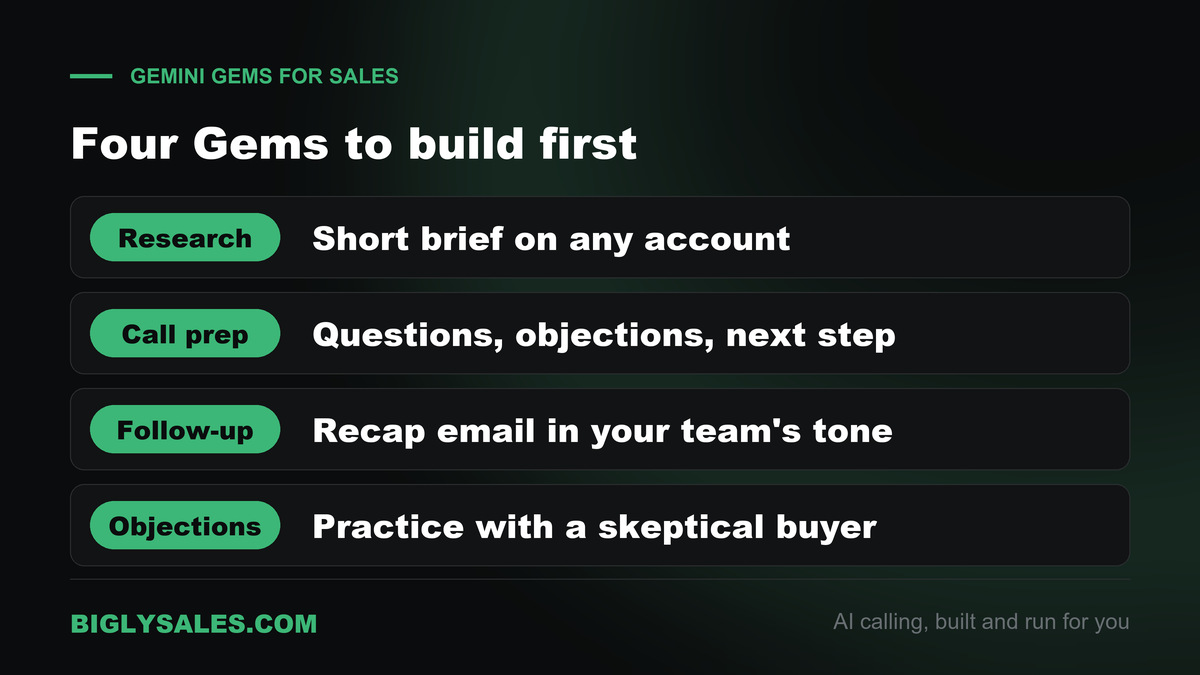
Gems are where a sales team gets the quickest return. Here are four worth building first.
- Account research Gem. Takes a company name and returns a short brief with what they sell, recent news and likely buying triggers.
- Call prep Gem. Takes your notes and returns opening questions, likely objections and a clear next step to ask for.
- Follow-up writer Gem. Takes meeting notes and drafts a short recap in your team’s tone, with one call to action.
- Objection coach Gem. Plays a skeptical buyer so a rep can practice before a hard call.
How to build and share a Gem
- Open the Gemini app with your Workspace account and go to the Gem manager.
- Create a new Gem, give it a name and write its instructions.
- Add reference files, such as your pitch deck or pricing sheet, from your device or Drive.
- Test it on a real account and tighten the instructions.
- Click Share and choose who on your team can use or edit it.
According to Google’s Workspace announcement, shared Gems are stored in Google Drive and follow your Drive sharing settings. Admins can turn Gem sharing off in the Admin console. A Gem can only be shared when its files come from your device or Drive.
Deep Research
Deep Research is a mode in the Gemini app that browses many sources and returns a structured report. Use it before a large deal or a new vertical push, not before every call. Check the sources it cites, because a confident report can still rest on an old page.
NotebookLM for sales enablement
NotebookLM answers questions using only the documents you load into it. Google’s pricing page now lists it as Gemini Notebook. For sales, that makes it a good home for your playbook, product sheets, call scripts and objection library.
A new rep can ask it how to handle a pricing objection and get an answer drawn from your own material. It can also produce audio overviews, which some reps listen to on the way to a meeting. Business Standard and Plus get higher NotebookLM limits than Starter.
Gemini Enterprise and agents
Gemini Enterprise is Google Cloud’s platform for AI agents that work across company data and outside tools. It is a separate subscription from Workspace and is set up in the Google Cloud console.
It comes in several editions, including Business, Standard and Plus. Google does not publish a price list for it, so expect to get a quote from Google sales. The edition matters for one reason in this guide. Custom MCP servers work on Standard and Plus, and not on Business.
Most sales teams do not need Gemini Enterprise on day one. Start with Workspace and Gems. Look at Enterprise when you want agents that work across many company systems.
How to connect the Bigly Sales MCP server
MCP is an open standard that lets an AI assistant talk to other software. If the term is new, our explainer on what MCP is covers it in plain words.
The Bigly Sales MCP server lets an assistant read your calling data and, where your account allows, act on it. You can ask for call outcomes by campaign, transcripts, leads who showed interest, callback requests and minutes used this cycle. Your assistant sees only what your Bigly account allows.
Connect through Gemini CLI
Gemini CLI is Google’s free command line version of Gemini. It is the Google client the Bigly Sales team lists as supported, next to ChatGPT, Claude, Cursor and VS Code. It runs in a terminal, so the first setup is easier for a sales ops lead or an admin than for every rep. Google’s Gemini CLI guide to MCP servers covers the commands below.
- Install Gemini CLI and sign in with your Google account.
- Get the Bigly Sales MCP server address from your Bigly account.
- In a terminal, run
gemini mcp add --transport http bigly-sales [server address]. - Start Gemini CLI and run
/mcp auth bigly-sales. Your browser opens so you can sign in to Bigly Sales. - Run
/mcpand check that the server shows as connected with its tools listed. - Ask a plain question, such as which leads asked for a callback this week.
The sign in step needs a browser on the same computer. It will not work over a remote session or inside a container with no browser. Start with read questions, such as call outcomes and transcripts. Add requests that change data later, one at a time.
What about Gemini Enterprise
Google’s setup guide for custom MCP servers shows that Gemini Enterprise can add a custom MCP server on its Standard and Plus editions. An admin sets it up in the Google Cloud console with an HTTPS address and OAuth sign in, and no actions are on by default. Bigly Sales has not confirmed this route yet, so use Gemini CLI for now and check with the Bigly Sales team before you plan around Enterprise.
A 30 day rollout plan
- Week one, turn it on. Confirm your Workspace plan, check that Gemini is on for the sales team in the Admin console and set Meet notes to go to internal guests first.
- Week two, build three Gems. Have your strongest rep write the call prep, follow-up and objection Gems, then share them with the team.
- Week three, make it a habit. Ask every rep to use Gemini in Gmail and Meet on real accounts. Collect the prompts that worked.
- Week four, review and decide. Check which uses saved time and which created rework. Decide whether a Bigly Sales connection through Gemini CLI is worth a pilot.
Privacy and data
Google says it does not use your Workspace data to train or improve the models behind Gemini outside of Workspace without permission. That promise is in Google’s help page on how Gemini in Workspace protects your data. It covers qualifying Workspace editions.
Two limits to know. A rep who uses a personal Gmail account follows consumer Gemini terms, and that data may be used to improve Google’s models. Meet notes can go to outside guests if the organizer’s setting allows it, so check the setting before a call with a prospect.
Mistakes to avoid
- Buying Starter for the whole team. It leaves out Meet notes and Gemini in Sheets.
- Letting reps use personal accounts. Company data then falls under consumer terms.
- Sending AI drafts unread. A wrong price or promise in a follow-up costs more than the time saved.
- Sharing notes outside by default. Set Meet notes to internal guests until the team is used to them.
- Turning on every MCP action at once. Start with read actions and widen in steps.
- Treating Deep Research as fact. Open the sources before you repeat a claim to a buyer.
Who this is wrong for
- Teams on Microsoft 365. Gemini only pays off when your email, calendar and files live in Google Workspace.
- Teams that want an AI to dial and talk to leads. Gemini does not place calls, so you need an AI calling platform for that.
- Teams that want Bigly Sales data inside the Gemini app or Gmail today. The confirmed Google route is Gemini CLI, which runs in a terminal.
- Teams whose rules block outside AI tools until IT or legal signs off.
Gemini vs ChatGPT vs Claude for sales
All three assistants help with prep and writing. The real difference is where each one lives and how it reaches your other tools. We covered the other two in our guides on how to use Claude and ChatGPT for sales teams.
| Assistant | Where it lives | Team plan | Custom MCP servers | Good fit for |
|---|---|---|---|---|
| Gemini | Inside Gmail, Docs, Sheets and Meet | Bundled with Google Workspace | Gemini Enterprise Standard or Plus, set up by an admin | Teams that run on Google Workspace |
| ChatGPT | Its own app and workspace | ChatGPT Business | Admins and owners add them in a Business workspace | Teams that want a separate assistant workspace |
| Claude | Its own app, desktop and web | Claude Team | Custom connectors on every plan, added by an Owner on Team | Teams that write long documents and reports |
How to use Gemini FAQ
What can a sales team use Gemini for?
Sales teams use Gemini for the reading and writing around a deal. That covers account research, call prep, follow-up emails, thread summaries in Gmail, meeting notes in Meet and quick analysis of lead lists in Sheets. A person should check anything before it reaches a prospect. Gemini does not dial or talk to your leads on its own.
Is Gemini free for business use?
Anyone with a personal Google account can try the Gemini app for free. For business use, Gemini comes bundled with paid Google Workspace plans, so your team gets it through Workspace rather than a separate AI bill. Workspace business data then falls under Google’s Workspace privacy terms instead of consumer terms.
How much does Gemini cost with Google Workspace?
Google’s pricing page listed Business Starter at $7, Business Standard at $14 and Business Plus at $22 per user per month when checked on October 28, 2026. Enterprise pricing is by quote. Gemini is included in all of these plans, but Starter gets fewer Gemini features than Standard and Plus.
Which Workspace plan includes Gemini in Docs, Sheets and Meet?
Business Standard and above. Google’s pricing page shows Business Starter with the Gemini app and Gemini in Gmail only. Standard, Plus and Enterprise add Gemini in Docs, Sheets, Slides, Drive, Meet and Chat, plus Meet note taking. That makes Standard the usual starting point for a sales team.
What is the difference between Gemini and Gemini Enterprise?
Gemini is the assistant your team uses inside the Gemini app and Google Workspace. Gemini Enterprise is a separate Google Cloud product for building and running agents across company data and outside tools. It is sold as its own subscription, and Google quotes its prices through sales. Most sales teams start with Workspace and add Enterprise later.
Does Google train Gemini on my Workspace data?
Google says it does not use your Workspace data to train or improve the models behind Gemini outside of Workspace without permission. That promise covers qualifying Workspace editions. A personal Gmail account follows consumer Gemini terms instead, so keep company work inside your Workspace account.
Can Gemini connect to Bigly Sales?
Yes, through Gemini CLI. The Bigly Sales team lists Gemini CLI among the supported clients for its MCP server, next to ChatGPT, Claude, Cursor and VS Code. You add the server with one command and sign in through your browser. Gemini Enterprise also supports custom MCP servers, but Bigly Sales has not confirmed that connection yet.
Does Gemini support MCP servers?
Yes, in Gemini Enterprise and in Gemini CLI. In Gemini Enterprise, an admin adds a custom MCP server in the Google Cloud console with an HTTPS address and OAuth sign-in, then turns on the actions people may use. Google’s docs say the Business edition of Gemini Enterprise does not support custom MCP servers.
What are Gems in Gemini?
Gems are saved versions of Gemini with your own instructions and files, so you stop retyping the same prompt. A sales team might keep a call prep Gem, a follow-up Gem and an objection coach Gem. Workspace users can share Gems with coworkers through Google Drive, and admins can turn sharing off.
Should a sales team choose Gemini, ChatGPT or Claude?
Pick the one that sits closest to where your team already works. Gemini fits teams that live in Gmail, Calendar and Meet, because it is bundled into Workspace. ChatGPT and Claude suit teams that want a separate assistant workspace. All three can help with prep and writing, and none of them places calls to your leads.
The bottom line
If your team already runs on Google Workspace, you probably already pay for Gemini. Put it to work on inbox triage, call prep, Meet notes and follow-ups, and build a few shared Gems so every rep gets the same help.
Gemini makes your reps faster at the work around the phone. It does not make the calls. When you want an AI that dials, qualifies and transfers live to your reps, pair your team with a calling platform built for it.
Ready to talk
See what your reps could do with more live calls
Book a free demo and we will map Bigly Sales to your call volume and your stack. It takes 30 minutes, and you leave with a clear setup plan.